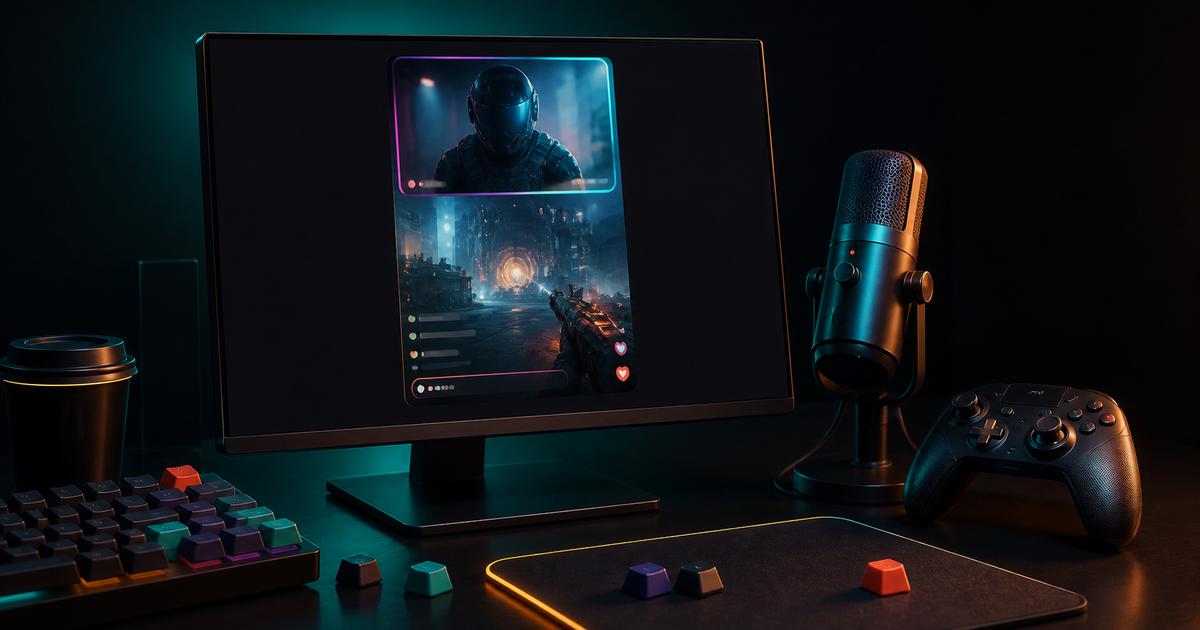
An OBS vertical gaming layout starts from one number. A 16:9 game scaled to the full 1080-pixel width of a 1080x1920 portrait canvas is about 608 pixels tall, a little under a third of the screen. TikTok's layout guide asks for at least a quarter, so full width already passes. The decision is whether to crop the sides off to make the game taller, and what goes in the 1,312 pixels left over.
Layout guidance is TikTok's, from its LIVE Studio Help Center; OBS controls and shortcuts are from OBS's knowledge base, both read on 12 November 2026. The arithmetic is ours. Other parts of a gaming setup are in the TikTok LIVE gaming guides.
Set the canvas first, then build
Set Base (Canvas) Resolution to 1080x1920 in Settings, Video before adding a single source. OBS's overview guide warns that changing the base resolution later means re-aligning and re-sizing every source. The OBS settings guide for TikTok covers the output resolution, frame rate and encoder that go with it.
Build portrait, or let TikTok crop a landscape stream
There's a shortcut some streamers take: send an ordinary 16:9 stream and let TikTok fit it to phones. TikTok's screen adaptation help, updated 9 April 2026, explains what that gets you. Portrait viewers see a landscape stream either in its original form, with black bars, or zoomed in with two sides cropped. TikTok's examples are a 4:3 crop and a 1:1 crop. Viewers who turn to full screen always see the whole image.
| Approach | What a phone viewer sees | What you control |
|---|---|---|
| Portrait canvas in OBS, 1080x1920 | Your layout, filling the screen upright | Every pixel: game crop, camera band, widgets |
| Landscape stream, original | A small 16:9 picture with black bars above and below | Nothing beyond the 16:9 frame |
| Landscape stream, cropped by TikTok | A bigger picture with both sides cut off | Which crop, not what's in the cut-off sides |
For landscape streams TikTok suggests the crop, for a larger display. For portrait gaming it suggests Fit to Screen, and for other portrait streams Fill Screen. If you stream with a key from OBS, those choices are made on your Go LIVE web page, not in OBS.
Our view: build the portrait canvas. A TikTok crop can't move your minimap or camera out of the way of the cut, and a portrait layout can.
How tall should the game be
Three common choices, all on a 1080x1920 canvas. The heights follow from scaling the cropped game to 1080 pixels wide.
| Game crop | Height at 1080 wide | Share of the screen | Left for camera and widgets |
|---|---|---|---|
| None, full 16:9 | 608 px | 32% | 1,312 px |
| Sides trimmed to 4:3 | 810 px | 42% | 1,110 px |
| Sides trimmed to 1:1 | 1,080 px | 56% | 840 px |
TikTok's minimum is a quarter of the screen, 480 pixels on this canvas, so every row passes. The cost of cropping is what's at the edges. If your game keeps its minimap, ammo or kill feed near the corners, a 4:3 or square crop can cut off exactly what viewers came to read.
Start uncropped, read the stream on a phone, and only crop if the action in the middle is too small to follow. A HUD you can't read is fixable later with a second, smaller crop of the minimap. A HUD you cropped away is gone.
Crop and place the game in OBS
- Add the game capture and select it. Press Ctrl-R (Cmd-R on a Mac) to reset its size and position.
- Hold Alt (Option on a Mac) and drag an edge of the bounding box to crop. OBS turns the cropped edge green.
- Drag the box so it spans the full canvas width. Hold Ctrl while dragging to turn off snapping if it jumps.
- For exact numbers, press Ctrl-E to open Edit Transform and type the position and size.
A Crop/Pad filter does the same crop with typed values, which is easier to copy between scenes. Avoid Ctrl-S, Stretch to screen, on a game capture: it fills the canvas by distorting the picture.
Where the camera and widgets go
TikTok's portrait advice is to give the facecam its own area, centered and at full size, rather than laying it over the game. If you make it smaller or push it to one side, TikTok suggests filling the empty background with stickers or widgets so the frame looks balanced. Widgets go in a separate section too; if they have to sit on the game or the camera, TikTok says to keep their number and size small.
In practice that's a stack of three bands: camera, game, and a strip for alerts or a goal bar. Which band sits on top is up to you. TikTok draws its own interface on the phone over parts of the frame. A test on a real phone shows where your bands collide with it. TikTok's help pages we read don't publish exact safe-zone pixels for LIVE.
The bands are easy to size once the game height is fixed. A 16:9 camera at the full 1080-pixel width is about 608 pixels tall, the same as an uncropped game. Stack the two and you've used 1,216 pixels, leaving 704 for alerts and a goal bar. With a square game crop, that camera leaves only 232 pixels, so crop the camera tighter or let it run narrower than full width. All of this is our arithmetic, not TikTok's.
LIVE Studio users can check the collision without a phone. Its Mobile view, from the view selector at the top of the scene panel, shows how identity, ranking and other information appear over the scene. OBS has nothing equivalent, which is why the phone test at the end of this page matters more for OBS users.
One layout for several games
Build the camera and widget bands once, then make one scene per game with its own crop. Games put their HUDs in different places, so check a recording of each before reusing a crop. Fortnite's HUD sits near the edges, so the Fortnite TikTok LIVE guide keeps the whole picture. A VR stream is the exception that wants a larger camera band; the VR guide explains why. Call of Duty has its own capture notes, as do Apex Legends and Valorant in the game-by-game guides, and retro games need a different scale filter. League of Legends needs two scenes on its own.
If you also stream landscape to another platform, keep this portrait setup in its own profile and scene collection, or use a second canvas. The streaming software guides cover both approaches.
A landscape version has its own TikTok rules. TikTok's layout guide says to make the gameplay full screen and put the facecam in a corner. It should take between 1/16 and 1/9 of the screen area and not block critical action. On a 1920x1080 canvas that works out to between 480x270 and 640x360 pixels for a 16:9 camera. Widgets go in the corners in small numbers.
The phone test
Record 30 seconds of a busy moment, send it to your phone, and watch it at arm's length. If you can't read the score or the timer, the game needs more height or a tighter crop. If the camera band is mostly empty wall, shrink it and give those pixels to the game.
Vertical gaming layout questions
How do I make OBS vertical for TikTok?
Open Settings, Video, and set Base (Canvas) Resolution to 1080x1920 before adding any sources, then set Output (Scaled) Resolution to 1080x1920 or 720x1280. OBS's overview guide warns that changing the canvas later means re-aligning every source. If you also stream landscape, put the vertical setup in its own profile and scene collection.
How do I fit a horizontal game into a vertical stream?
Scale the game to the full 1080-pixel width of the portrait canvas, which makes a 16:9 game about 608 pixels tall. TikTok's layout guide asks for at least a quarter of the screen, so that already passes. Crop the sides with Alt-drag only if the action is too small on a phone, and never use Stretch to screen.
Should I use Fit to Screen or Fill Screen for a TikTok gaming stream?
TikTok's screen adaptation help suggests Fit to Screen for portrait gaming, because it keeps the whole picture, though it may add black bars. Fill Screen fills the phone by cropping the left and right sides, which can cut off a HUD. TikTok suggests Fill for portrait streams that aren't games. Key users set this on the Go LIVE web page.
Where should the facecam go on a vertical gaming stream?
TikTok's layout guide recommends giving the facecam its own area in portrait, centered and at full size, rather than laying it over the gameplay. If you make it smaller or move it to one side, TikTok suggests filling the empty space with stickers or widgets. Above or below the game band both work; check which collides less with TikTok's interface on a phone.
How big should a facecam be on a landscape TikTok stream?
TikTok's layout guide puts it in a corner of the gameplay at between 1/16 and 1/9 of the total screen area, without blocking critical in-game action. On a 1920x1080 canvas, that's roughly 480x270 to 640x360 pixels for a 16:9 camera, by our arithmetic. Keep widgets few and in the corners too.
How tall is a 16:9 game on a 1080x1920 canvas?
About 608 pixels at the full 1080-pixel width, which is 32% of the screen height. TikTok asks for at least a quarter, 480 pixels on this canvas, so a full-width game already passes.
How do I crop a game in OBS?
Select the source and hold Alt (Option on a Mac) while dragging an edge of its bounding box, and OBS turns the cropped edge green. A Crop/Pad filter does the same with typed values, which is easier to copy between scenes.
Should I use Stretch to screen in OBS for a vertical stream?
Not on a game capture. Stretch to screen, Ctrl-S, fills the canvas by distorting the picture. Scale the game to the full width instead, and crop the sides if you need more height.
Can I send a landscape stream and let TikTok make it vertical?
You can. TikTok shows portrait viewers either the original with black bars or a zoomed version with two sides cropped, and full-screen viewers see the whole image. Its crop can't move your minimap or camera out of the way, so we'd build the portrait canvas.
What are TikTok's safe zones for LIVE?
We found no exact safe-zone measurements for LIVE in TikTok's help pages. Test on a real phone, or use LIVE Studio's Mobile view, to see where TikTok's interface covers your frame.
Sources and checks
6 sources, checked November 15, 2026
Platform and app documentation changes. These sources were checked on the dates shown.
- TikTok LIVE Studio Help Center: Adjust the scene layouts of your LIVE, checked November 15, 2026
- TikTok LIVE Studio Help Center: Use Screen-adaptation, checked November 15, 2026
- TikTok LIVE Studio Help Center: Check your LIVE layout in Mobile view, checked November 15, 2026
- OBS Knowledge Base: OBS Studio Overview Guide, checked November 13, 2026
- OBS Knowledge Base: Keyboard Shortcuts, checked November 13, 2026
WaveSync app and source checks cited on this page:
- OBS Studio 32.2.2 filter list including Crop/Pad, read from the installed app on the WaveSync test Mac on 5 November 2026 (logged in the Wave B evidence file).
Set up your TikTok LIVE in a few clicks
Pick what gifts, follows and chat commands should do, add WaveSync to LIVE Studio, OBS or Streamlabs, and send a test before you go live. Sounds, games, alerts and text-to-speech are each a click or two away. The Free plan runs 5 actions and reads chat aloud, with no card needed.
Open WaveSync →